Instagram Share Video Guide for Every Placement
Parth Jasrapuria
Founder
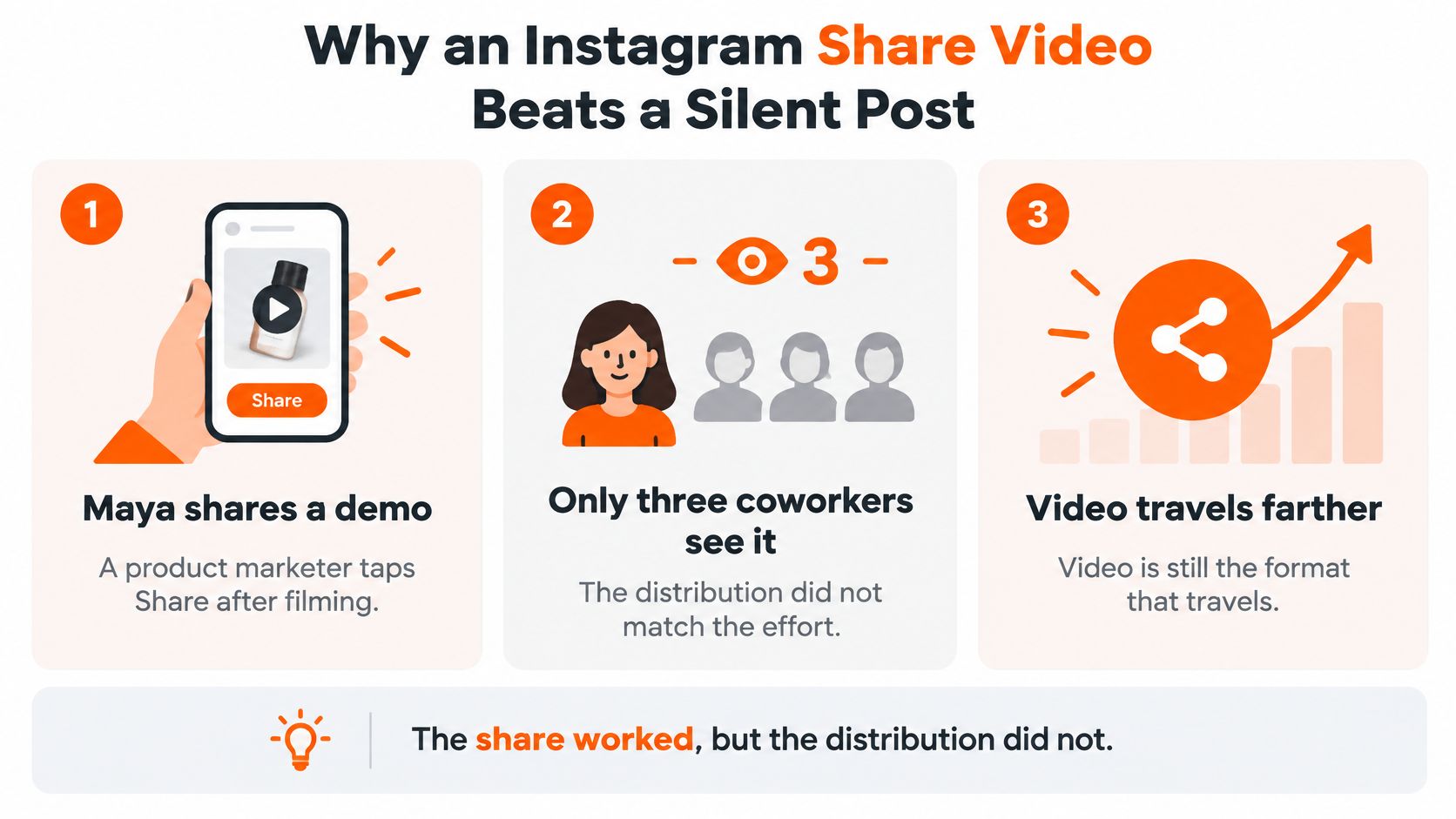
Maya, a product marketer, films a useful software demo, taps Share, and waits for buyer interest. In this scenario, only three coworkers see it. The share worked. The distribution didn't.
That's a familiar Instagram problem: a finished video, a confusing set of publishing options, and no clear connection between the button pressed and the audience reached. The useful question isn't how to share a video. It's where that video should land and what someone should do next.
Why an Instagram Share Video Beats a Silent Post
A finance team can use a short demo to show how it catches an invoice error before approval. Sending the clip to an office chat may help colleagues understand it, but won't introduce the product to unfamiliar buyers. For that, the video needs a destination suited to discovery.
The SocialPilot Instagram trends report found that videos generated 49% more audience reach than carousels and photos among the accounts it analyzed, despite making up 34.08% of content. Those results describe the accounts in the report, not a promised outcome for every post. A clear opening and readable visuals still matter.
Different destinations serve different jobs
Treat sharing as four different audience outcomes, rather than four separate video systems. Instagram directs new video posts into Reels, so the choice is about who should see the clip and what they should do.
Public Reel: Use an original demonstration to seek discovery beyond existing followers.
Story: Share a temporary update with the current audience, such as a product-launch reminder.
Feed placement: Add a video to the account's ongoing presence. The placement itself does not promise discovery.
Private send: Recommend the clip in a one-to-one conversation. It won't appear as a public profile update.
A useful clip starts with a destination and an intended response. For example, a software marketer could publish an invoice-checking demo as a Reel for discovery, then privately send it to a prospect who asked about approval workflows. A transition effect can help the edit, but it cannot choose the audience.
Choosing a platform and choosing a placement are related decisions, not the same one. ContentBuck's Instagram versus TikTok comparison offers context for comparing the channels.
Sound is another part of the viewing experience. If a clip plays without audio, restore Instagram sound with StreamGen can help distinguish a playback issue from an export issue. Still, make the main point understandable without audio: add burned-in captions to the video export, since native captions may not display reliably across devices. The office chat can keep the tripod blooper.
Video Sizes for Feed Stories Reels and Sends
The practical starting file is a vertical master, not a widescreen recording squeezed into a phone-shaped hole. An editor should build the composition around the speaker, the product interface, and the words that explain the result.
The Hootsuite video requirements guide supports a 1080×1920, 9:16 workflow using progressive H.264 or HEVC in MP4 or MOV, AAC audio at no more than 48 kHz and 128 kbps, video bitrate at or below 25 Mbps, and approximately 23–60 fps, with 30 fps a practical baseline. It also lists Reels from 3 seconds to 15 minutes through supported publishing workflows.
Instagram video specs by where sharing happens
The table applies that vertical export baseline. Publishing options can differ between the Instagram app and an approved scheduling workflow, so an available upload route matters as much as the file itself.
Placement | Ratio | Pixels | Length | Export note
Reels | 9:16 | 1080×1920 | 3 seconds to 15 minutes in supported workflows | H.264 or HEVC, MP4 or MOV, 30 fps, bitrate at or below 25 Mbps
Stories | 9:16 | 1080×1920 | Current Story-card limit shown in the app | Same vertical export; sequence longer demos
Feed video | 4:5, 1:1, or 9:16 | 1080×1350, 1080×1080, or 1080×1920 | New videos treated as Reels | Prefer a real vertical composition, not a center crop
Private send | Original ratio | As uploaded | The post being forwarded | No separate public upload
IGTV | Retired | Not a separate upload | Folded into Instagram's consolidated video publishing | No new IGTV file needed
A feed preview and the full-screen video don't always show the same portion of the composition. The cover needs to communicate the subject even when the viewer hasn't started playback.
For paid distribution, organic export settings aren't the whole checklist. Rapid Ads' 2026 Instagram video ad requirements provide a separate placement-specific reference before an organic edit becomes an advertising asset.
The export details that prevent avoidable problems
The editor should enable fast start or web optimized export where available. This places the file's moov atom, its playback metadata, at the front, helping automated publishing tools process it correctly.
A file that plays on a laptop can still fail in a scheduler. The editor should check its container and encoding rather than repeatedly uploading the same troublesome file and hoping Instagram develops a better mood.
Keep essentials central: Product labels, faces, subtitles, and logos need space away from interface controls.
Choose a meaningful cover: An invoice approval screen with a readable problem statement is more useful than a speaker blinking.
Inspect the actual upload: A local preview doesn't reveal every overlay that appears inside Instagram.
Consider a hypothetical security vendor repurposing a widescreen webcam demonstration. A center crop preserves the speaker's nose but removes the alert dashboard, which was rather important to the security demonstration.
A dedicated vertical rebuild can place the speaker above a close-up of the alert. The editor preserves the explanation instead of merely preserving the middle of the original picture.
How to Share a Video on Instagram
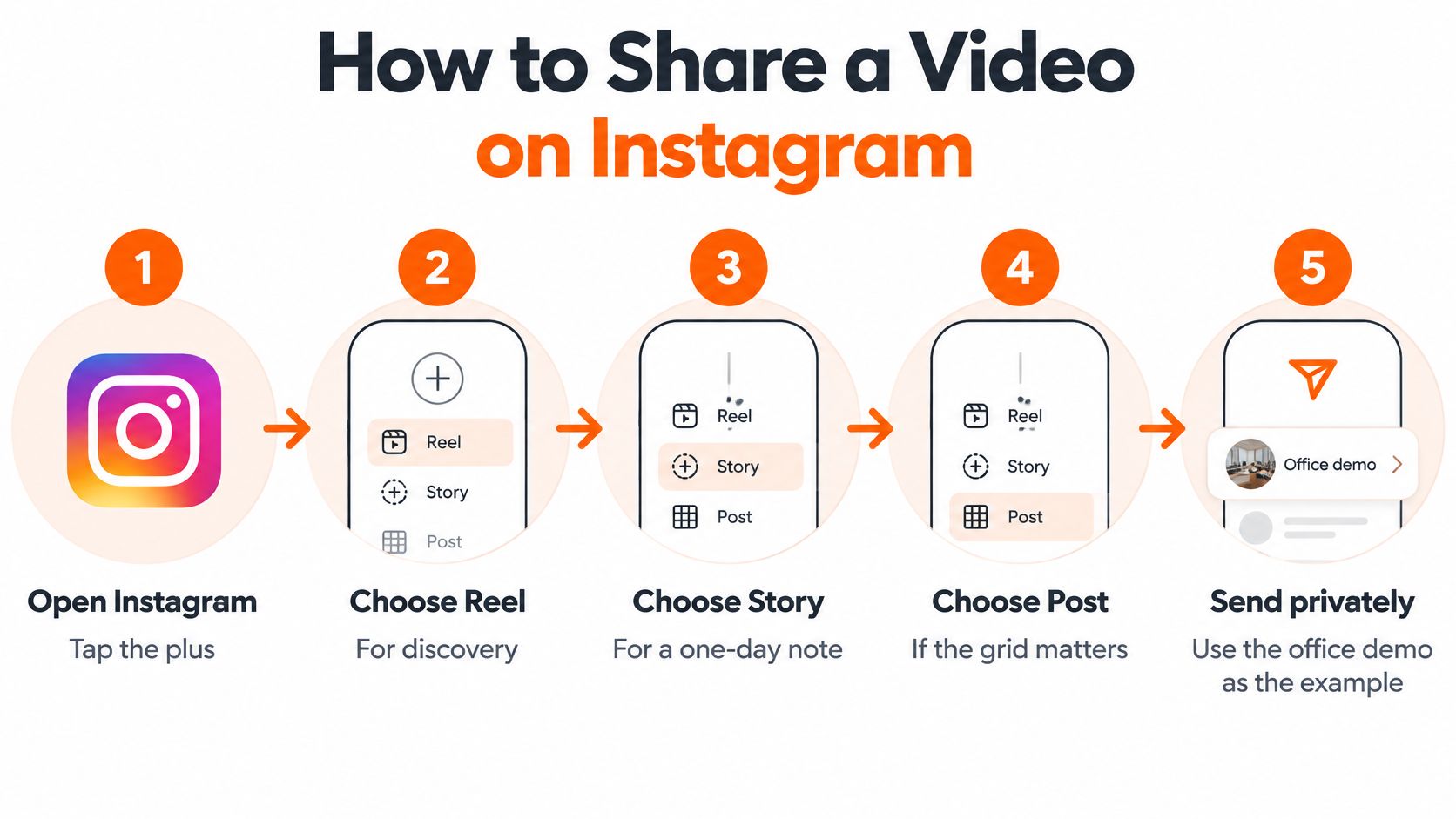
The public upload and the private send begin in different places. Maya should first decide whether the invoice demo needs unfamiliar viewers, existing followers, or a particular buyer.
The publishing choices are easier to separate when each path has a clear purpose.
Publishing a new public video
Open the creation menu. The marketer taps the plus button and chooses Reel for discovery, Story for a temporary update, or Post when the account's publishing grid matters.
Select the finished file. The vertical invoice demo should explain a single problem, not replay the entire webinar.
Set the cover where offered. A cover such as “Spot an invoice mismatch before approval” gives an unfamiliar viewer a reason to watch.
Check the composition and caption. The product interface must remain readable, and the post text should explain the demonstration without exaggerated promises.
Publish and inspect. After tapping Share, the marketer opens the published version to check framing, captions, and interface overlap.
Menu names and available controls can change by account and app version. The decision stays simple: a public upload creates an audience-facing asset; a send starts or supports a conversation.
The embedded walkthrough provides an additional visual reference for the sharing controls.
Sending an existing post privately
The Instagram Help Center's sharing instructions describe this route for a photo, Reel, or carousel, including its visibility and notification rules.
Open the existing item. Maya finds the published invoice Reel.
Tap Share. This is the paper-plane sharing control, not the creation menu.
Choose the recipient. A person or group can receive the recommendation.
Add context. A note such as “The invoice approval example discussed on Tuesday” explains why the clip matters.
Tap Send. The item enters the chat rather than appearing on the sender's feed, in search results, or on the profile.
The original uploader isn't notified about that private send. If the original account is private, the recipient must follow it to view the shared post.
Adding an existing Reel to a Story
The Story route uses the same sharing control but a different destination:
Open the Reel that should appear in the Story.
Tap the paper-plane Share icon.
Choose Add to story, when that option is available, rather than selecting a chat recipient.
Position the Reel preview centrally and add a short explanation of its value.
Tap Your story to publish.
A shared Reel may appear as a tappable preview rather than playing the entire original. If Add to story is missing, the marketer should check the source account's privacy and sharing permissions rather than download and republish the clip without permission.
Maya can use the Story for follower awareness and the chat for a relevant buyer conversation. When the desired outcome is a meeting, a contextual send to an interested contact is more purposeful than an unexplained public repost.
For creator-led campaigns where monetization is a separate objective, Contesimal's guide to earn affiliate income through Instagram Reels offers additional context. That commercial objective shouldn't replace a clear reason for sharing the clip.
Captions Hashtags and Mute Friendly Viewing
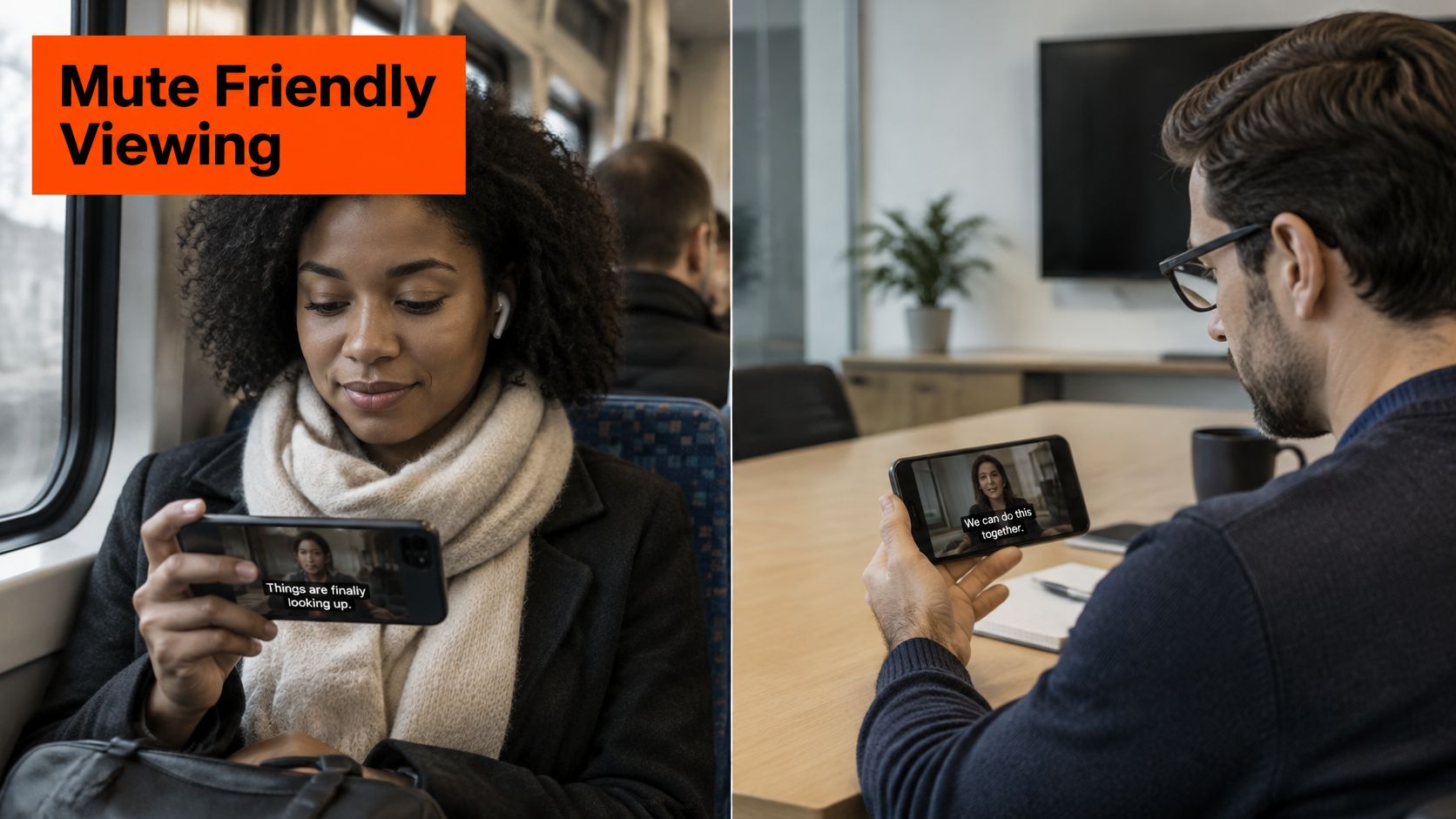
A finance buyer watches Maya's demo on a train, with sound off and a bag balanced on one knee. The product's value needs to survive that situation. A tiny subtitle beneath a tiny dashboard won't help.
Native captions aren't a dependable cross-device foundation. The American Foundation for the Blind's Instagram accessibility guidance notes that caption controls are most consistently available in the iOS and Android apps, desktop support is limited, and creators can't upload caption files for precise timing and editing.
A mute-friendly export makes the essential explanation visible before Instagram's caption settings enter the picture.
Burn the important speech into the picture
Burned-in captions become part of the exported video image. An editor can create and correct them in Adobe Premiere Pro, DaVinci Resolve, or another video editor before publication.
The editor should check technical terms manually, split speech into readable phrases, and use strong contrast against the background. A solid or shaded text background helps when the product interface changes underneath.
Captions shouldn't obscure the action they explain. In Maya's invoice demonstration, the subtitle belongs away from the approval button and the mismatch warning, not directly over both.
Sound-off playback should still explain the problem, the product action, and the next step.
Burned-in text also isn't a complete accessibility solution. Screen-reader users may need a descriptive post caption or transcript, particularly when an important action appears only on screen.
Write the post caption for comprehension
A hypothetical caption could read: “The demo shows how an approval rule flags an invoice mismatch before payment. The reviewer checks the warning, compares the record, and sends it back for correction.”
That text explains what happens without requiring the viewer to hear the narration or interpret every interface label. Any customer result, price, or compliance claim needs supporting context and permission before publication.
Hashtags should describe the subject and intended audience. Terms such as #AccountsPayable, #InvoiceAutomation, and #FinanceOperations are more relevant to this example than a heap of broad motivational tags.
Sound off: The viewer can identify the problem and outcome without narration.
Captions readable: Text remains legible on a phone and clear of interface overlays.
Claim repeated in text: Technical statements have a plain-language summary or transcript.
Hashtags specific: Tags match the product category, task, or professional audience.
Automatic captions deserve a final human check. If “pipeline” becomes “pine apple,” the product may accidentally appear to be entering the fruit business.
Turn One B2B Recording into Three Shares
A payroll demonstration can support a short problem statement, a focused proof clip, and a longer walkthrough. The team doesn't need another recording session for every placement. It needs an editing plan.
A Socialinsider analysis of 6 million Reels found that 45–60-second videos performed strongest for engagement and views, with performance declining sharply beyond three minutes. Its practical testing framework uses 15–30 seconds, 45–60 seconds, and 60–180 seconds as duration cohorts, not universal rules for every audience.
A payroll example with a controlled comparison
In a hypothetical campaign, the editor creates a brief hook about payroll exceptions, a medium-length customer explanation, and an extended walkthrough of the same correction process. The short version suits a reminder or relevant private recommendation; the middle version is a reasonable public Reel candidate.
The extended edit should earn its extra time by showing meaningful steps. A slow logo animation isn't a meaningful step, however fond the design team is of it.
The branching workflow keeps the original recording useful without treating every cut as a different campaign.
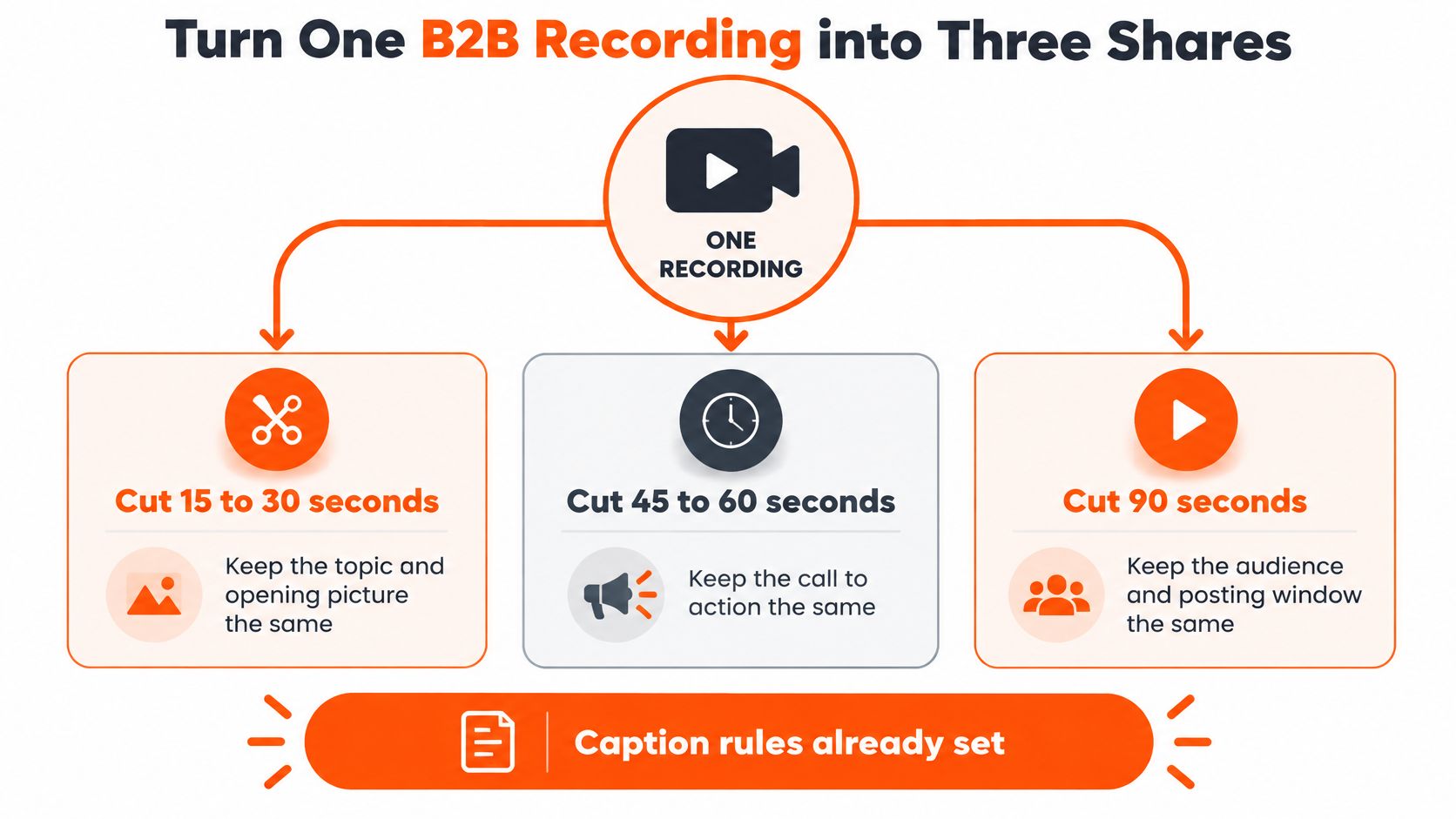
Each version should open with the business problem, demonstrate a useful action, and finish with a clear next step. ContentBuck's social video editing guide provides additional editing context for turning a recording into placement-ready assets.
A placement plan and a duration experiment aren't the same thing. Comparing a short private message with a longer public Reel changes both audience and distribution, so it can't isolate the effect of length.
For a cleaner duration test, the marketer holds the topic, opening visual, call to action, audience, and posting window as steady as possible within the same placement. After that comparison, the strongest edits can be adapted to other destinations.
Measure attention rather than applause
The useful scorecard separates consumption from business interest.
Metric | What the marketer learns
Plays and accounts reached | Whether playback activity reflects repeated plays or broader distribution
Completion rate | Whether viewers stay through the edit
Average watch time | How much attention the clip receives
Shares per reach | Whether viewers pass it along
Saves per reach | Whether viewers consider it useful later
Profile visits per reach | Whether the clip creates interest in the account
Qualified clicks | Whether relevant viewers take a meaningful next step
The team should define these calculations consistently and compare like with like. A change in measurement method can look suspiciously like an improvement.
A successful test changes the edit deliberately, not every ingredient simultaneously.
A blank opening frame, repetitive narration, or a long demonstration without visual transitions can weaken any version. Comparing the median result across several comparable posts is more useful than declaring victory after a lucky Tuesday.
Shares That Grow Reach and Shares That Do Not
More sharing isn't automatically more discovery. A rushed public repost may be less useful than an original demonstration, while a quiet private send can start the buyer conversation that matters.
A summary of Instagram's ranking statements published by Ad2 identifies watch time, likes, and sends as leading signals, with sends particularly relevant to reaching non-followers. It also describes Instagram's preference for original content and reduced visibility for watermarked or low-resolution reposts.
Score the outcome before celebrating the share
A marketer should assess different kinds of success separately:
Reach: Did the clip reach relevant people beyond the account's existing audience?
Qualified attention: Did viewers watch, visit the profile, ask a useful question, or continue toward a buying conversation?
Permission-safe reuse: Does the team have permission for this edit, placement, speaker, and intended use?
Consider a customer recording that demonstrates a useful workflow. Uploading a blurry copy with another platform's watermark isn't a strong way to present either company.
The team should obtain an authorized clean file, preserve source credit, and shorten unnecessary setup for unfamiliar viewers. Removing a watermark from someone else's downloaded video doesn't create ownership or permission.
A private-account post also remains subject to the account owner's access controls. Instagram's privacy guidance makes clear that approved access, not forwarding, determines who can see private content.
Fix the file or the route
Problem | Likely issue | Practical fix
Upload keeps spinning | Encoding, container, or file structure | Re-export with web-optimized settings and test the publishing route
Speaker's face is cut off | Automatic center crop | Reframe the composition around the speaker and product
Buttons hide important text | Text overlaps interface areas | Reposition the title and subtitles inside the clear viewing area
Recipient sees a locked post | Source account is private | Use an authorized public asset or obtain appropriate access
Repost looks recycled | Watermark, low resolution, or weak context | Obtain the original file and create an authorized, placement-specific edit
The team can then compare a contextual message, a Story placement, and an original Reel against their intended jobs. ContentBuck's guide to distributing video content helps frame that broader channel decision.
For Maya, the best next action may be a clean public demonstration plus a relevant buyer conversation. It probably isn't another upload of the same blurry screen recording.
Questions the Share Steps Leave Open
Can a business publish without the phone app?
Yes. The Instagram platform documentation supports publishing videos, Reels, and mixed-media carousels for professional accounts through apps with the required permissions. Standard Access is limited; serving professional accounts the developer doesn't own or manage requires Advanced Access, App Review, and Business Verification.
Does uploading transfer copyright to Instagram?
No. Instagram's Terms of Use say creators retain ownership but grant Instagram a broad license to use uploaded content. The uploader must own the necessary rights or have permission. A brief song excerpt or customer testimonial isn't automatically cleared for reuse.
Can a private send become a Highlight?
Not directly. A chat send isn't a published Story to save as a Highlight. An eligible video must be published through the Story workflow separately.
A repeatable recording process helps supply these placements. At ContentBuck, a 45-minute recording session with a client, technology partner, or industry expert produces a YouTube video, 3–5 LinkedIn clips, a blog post, and an audio episode.
For the next Instagram upload, the strongest focused demo should become the public Reel, with an appropriate Story preview and a contextual proof clip for an interested buyer.
ContentBuck offers B2B video planning, editing, captions, and repurposing for placement-ready distribution. Its Unlimited Ads Testing add-on includes unlimited Facebook, Instagram, TikTok, and YouTube ad creatives, 3–5 A/B variations per concept, hook testing, dynamic CTAs, 24-hour standard or 12-hour rush turnaround, and a dedicated account manager. Marketing teams can visit ContentBuck to discuss turning an existing demo into clear public videos, Story assets, and paid creative tests.
Parth Jasrapuria
Founder at ContentBuck
Building video systems for B2B businesses. Obsessed with YouTube growth, creative strategy, and organic SEO.